How to Plan Crop Rotation With EdenVatika
Crop rotation breaks pest cycles, balances your soil and keeps yields high — but only if you remember what grew where. Here's how EdenVatika tracks it for you, step by step.

Plant tomatoes in the same bed three years running and you will eventually grow a disappointing crop no matter how good your soil is.
The blight spores are already in the ground. The nutrients those tomatoes crave have been stripped out. The nematodes have moved in and settled.
Crop rotation is the oldest fix in the book — simply not growing the same family of plants in the same spot season after season. The problem has never been understanding it.
The problem is remembering what you planted where two or three years ago, and knowing which crop should come next.
That is exactly what EdenVatika does for you. Here is how to plan crop rotation with the app — step by step.
What Crop Rotation Is (and Why Your Garden Needs It)
Crop rotation means moving plant families around your beds on a cycle so the same family never returns to the same soil too soon. It works for three reasons:
- It breaks pest and disease cycles. Soil-borne problems like tomato blight, brassica clubroot, and onion white rot build up when their host plant keeps coming back. Move the host away and the problem starves out.
- It balances the soil. Different families feed differently. Leafy greens are nitrogen-hungry; legumes like beans and peas actually add nitrogen back. Rotate them in sequence and the soil stays in balance without constant feeding.
- It keeps yields up. A well-rotated bed simply produces more, year after year, than one growing the same crop on repeat.
The catch: rotation is planned by botanical family, not by individual plant. Tomatoes, peppers, potatoes, and eggplant are all nightshades — rotating a pepper in after a tomato is no rotation at all. This is the part gardeners get wrong, and the part EdenVatika handles automatically.
How EdenVatika Plans Crop Rotation For You
EdenVatika doesn't make you keep a separate rotation chart.
It tracks the planting history of every bed and uses it in three connected places — as you design, before each season, and at harvest.
You just need to keep your garden recorded in the app, and the rest happens on its own.
Here is the full workflow.
Step 1: Record What You Grow
Everything starts here. Rotation planning runs entirely on your beds' history, so the first job is simply to keep your garden up to date in the app:
- Add your beds in the Garden Designer and place what you plant in each one.
- Mark plantings as harvested in the Planting Calendar when the crop comes out.
The app compares each new season against what grew before, so the rotation warnings switch on once a bed has a previous season on record. The history only gets richer the longer you keep your garden in the app.
Step 2: Get Live Rotation Warnings as You Design
When you drag a plant into a bed in the Garden Designer, EdenVatika checks what grew in that bed last season and flags it if you're repeating the same plant family. If there's a conflict, a gentle note appears — for example:
"Rotation note: Tomato was grown here last season."
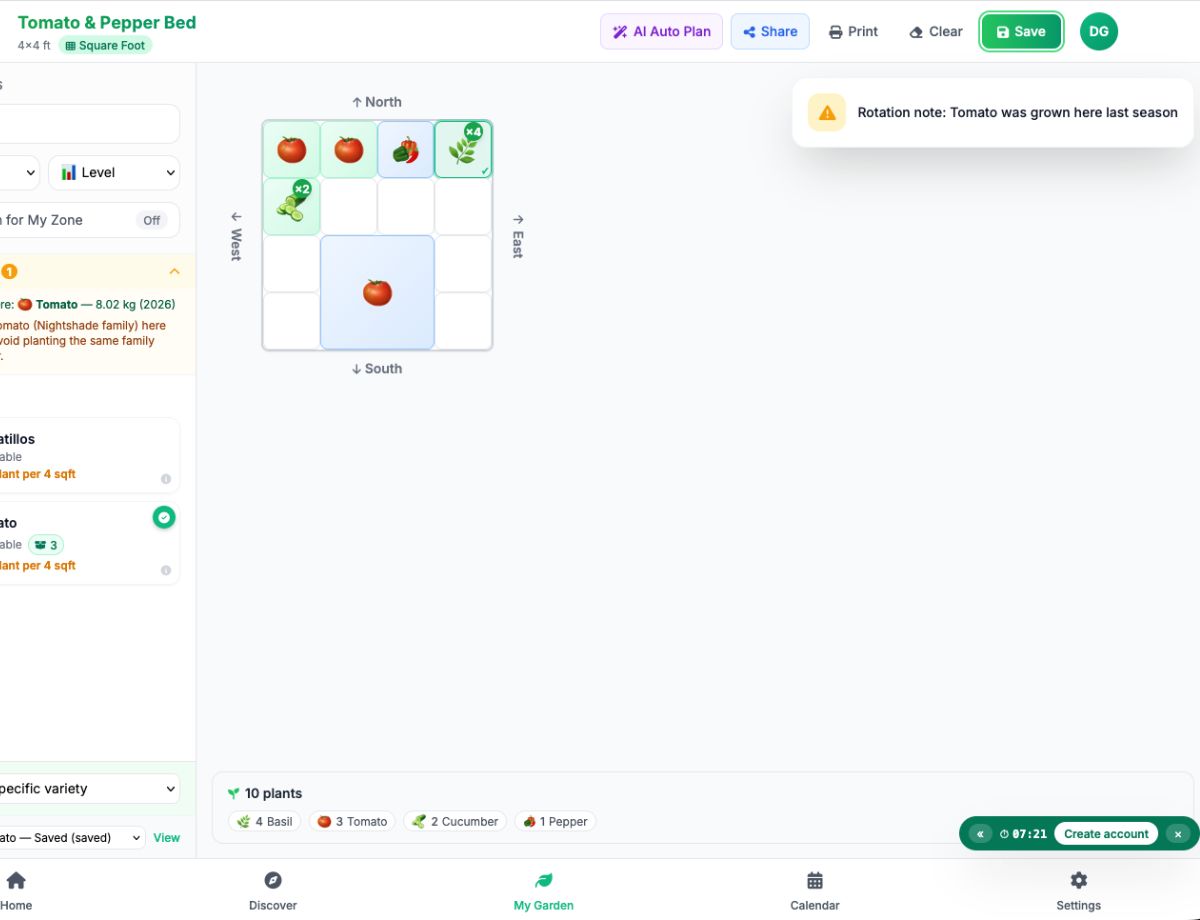
The Garden Designer flags a repeat the moment you place it — here, a tomato returning to last season's bed.
Because the check is family-aware, it will flag a pepper going in after a tomato, or kale going in after last year's cabbage — the conflicts that are easy to miss by eye.
The warning is a nudge, not a wall: you can still plant it if you have a reason to. It's there to catch the mistake before you commit, not to boss you around.
Let the app remember your rotation for you
EdenVatika tracks every bed's planting history and warns you the moment a crop is heading back into soil too soon — no charts, no spreadsheets, no guesswork.
Start Planning Free →Step 3: Plan Next Season With Bed Insights
Before a new season, open any bed's Bed Insights panel in the Garden Designer. This is your rotation planning hub, drawing on up to three years of that bed's history. It shows you:
- Crop rotation warnings — which family grew here last year and what to avoid.
- A bed health score — rotation balance makes up a quarter of the score, so good rotation visibly raises the number.
- "What should I plant next?" — concrete suggestions drawn from different families that fit the current season, favouring companions of what's already growing and nitrogen-fixing legumes to rebuild the soil.
This is where you plan proactively. Instead of staring at an empty bed wondering what's safe, you get a short list of crops that are good rotation choices right now.
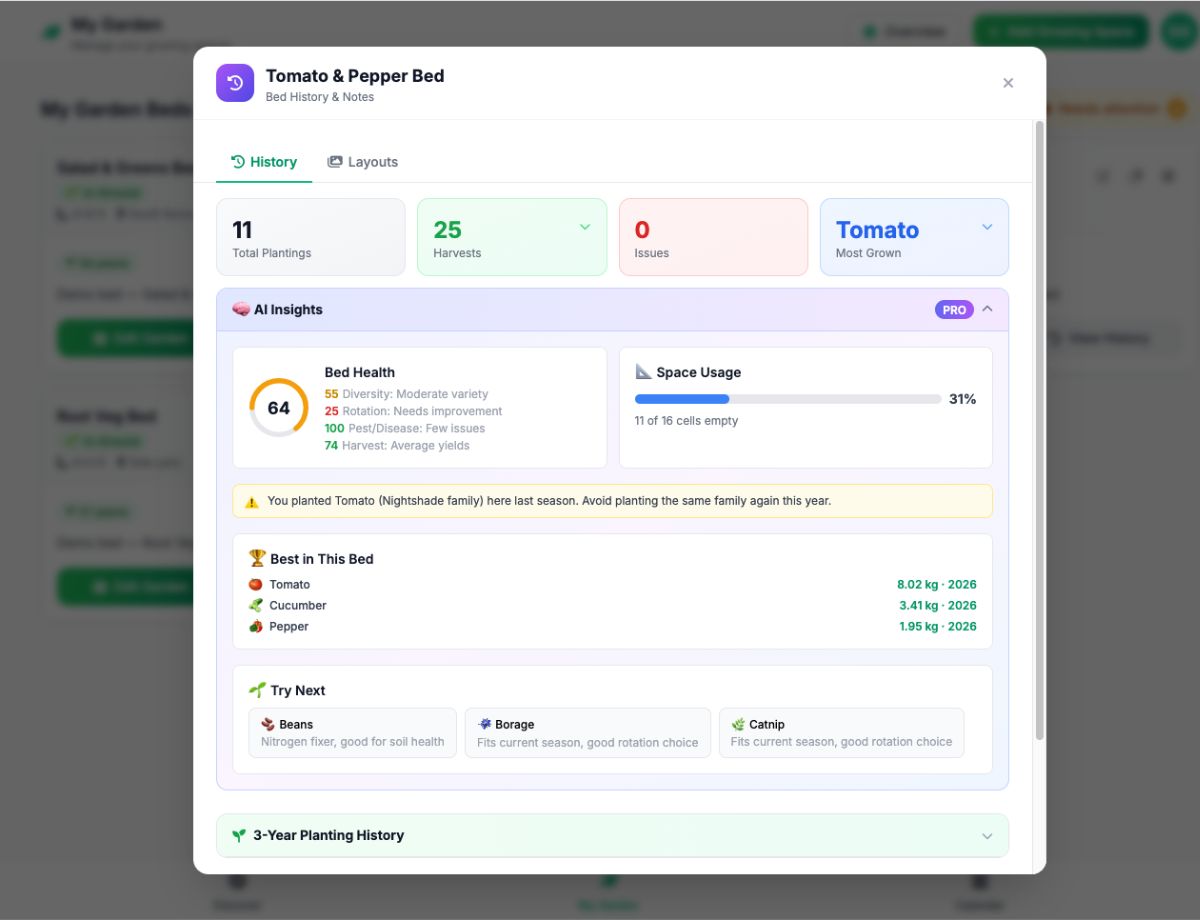
Bed Insights gathers a bed's rotation warnings, health score and next-crop ideas in one panel.
Step 4: Use "Suggest Next Crop" at Harvest
The moment you mark a planting as harvested in the Planting Calendar, EdenVatika offers rotation-safe successors for that freshly emptied bed. Each suggestion is tagged so you can decide at a glance:
- Rotation safe — a clean break from recent families.
- Check rotation — would repeat a family grown here recently.
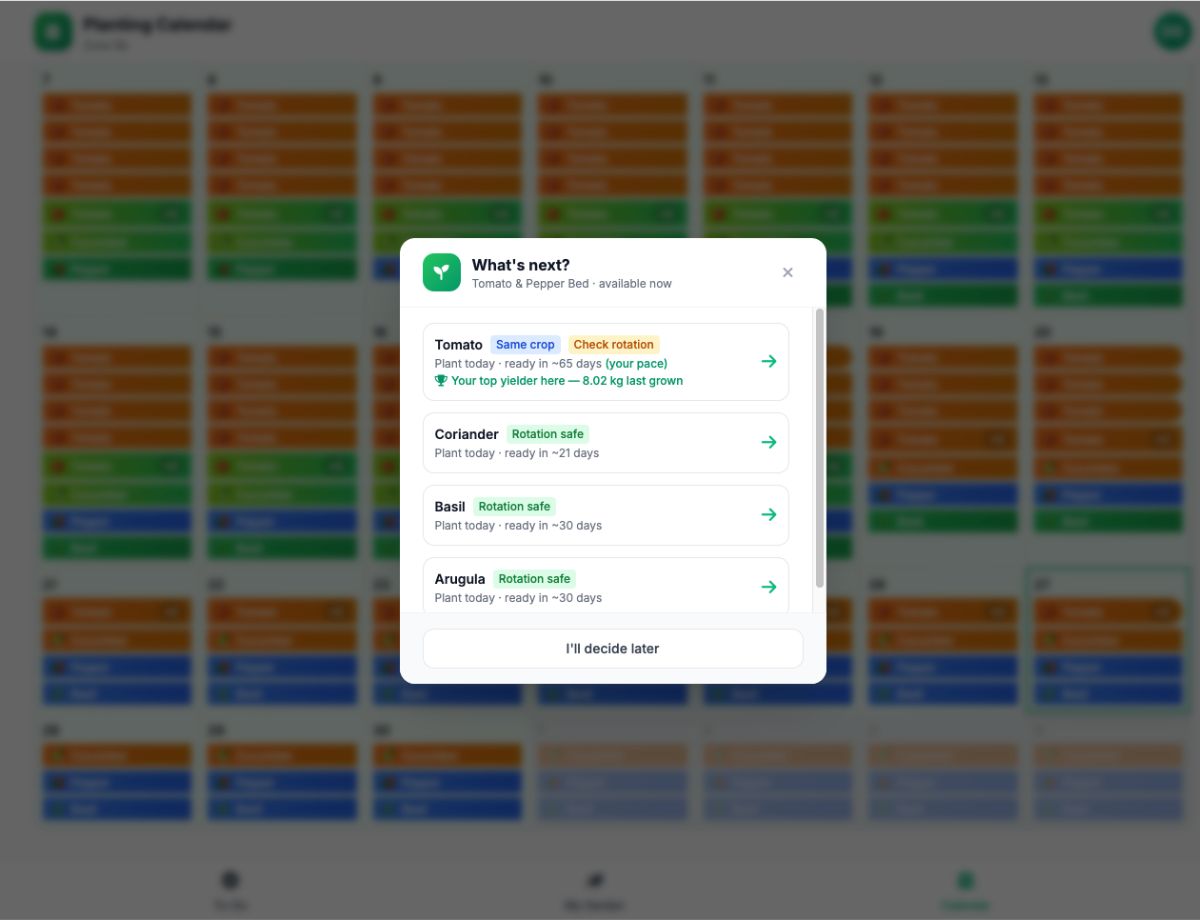
Mark a crop harvested and EdenVatika suggests rotation-safe successors, each with its own seed-start date.
It goes a step further than just naming a crop. EdenVatika works backward from when the bed will be free to give you a seed-start date, so your next round of transplants is ready exactly when the space opens. It also filters out tender crops that wouldn't beat your first frost, and orders the list by what has actually yielded best for you in that bed.
This closes the loop: a bed never sits empty wondering what's next, and you never accidentally replant the same troubled family.
Crop Rotation Timing: How Long to Wait
EdenVatika uses sensible, family-specific waiting periods built from real disease and pest pressure. Here is the schedule the app applies behind the scenes — handy to know even if the software does the remembering:
| Plant Family | Common Crops | Wait Before Replanting |
|---|---|---|
| Nightshades (Solanaceae) | Tomato, pepper, eggplant, potato | 3 years |
| Legumes (Fabaceae) | Beans, peas, lentils | 3 years |
| Brassicas (Brassicaceae) | Broccoli, cabbage, kale, radish | 2 years |
| Cucurbits (Cucurbitaceae) | Cucumber, squash, pumpkin, melon | 2 years |
| Carrot family (Apiaceae) | Carrot, celery, parsley, fennel | 2 years |
| Alliums (Amaryllidaceae) | Onion, garlic, leek | 2 years |
| Lettuce family (Asteraceae) | Lettuce, artichoke | 2 years |
| Beet & spinach (Amaranthaceae) | Beet, chard, spinach | 2 years |
The takeaway isn't to memorise this table — it's that EdenVatika already knows it, and applies it to every bed you've recorded.
A Simple Rotation Sequence to Follow
If you want a mental model behind the app's suggestions, this classic four-group sequence is the backbone of most good rotations.
Each group hands the bed to the next in a way that suits the soil:
- Legumes (beans, peas) — fix nitrogen and leave the soil rich.
- Leafy & brassica crops (cabbage, kale, lettuce) — heavy nitrogen feeders that use what the legumes left behind.
- Fruiting crops (tomatoes, peppers, squash) — need a fertile, well-worked bed.
- Root crops (carrots, onions, beets) — finish the cycle in leaner soil, then back to legumes.
EdenVatika's "What should I plant next?" suggestions lean on exactly this logic — which is why you'll often see a legume recommended after a hungry crop, or a different family entirely after a season of nightshades.
Frequently Asked Questions
Do I have to plan rotation manually in EdenVatika?
No. As long as you record what you plant and harvest, the app tracks the history and surfaces rotation warnings and safe-crop suggestions automatically.
How many seasons of data do I need before it works?
The rotation warnings compare this season against the last one, so they switch on once a bed has a previous season on record. The next-crop suggestions get richer as more history builds up.
Does it understand plant families, or just individual plants?
Families. It knows a pepper following a tomato is still a nightshade repeat, and warns you accordingly — the mistake that's hardest to catch by eye.
What about custom plants I've added myself?
Custom plants don't carry botanical-family data, so they're skipped by the rotation checks. For full rotation coverage, use them alongside EdenVatika's built-in plant library.
Which rotation features are free?
Recording beds and harvests is free. The live rotation warnings, Bed Insights, and "Suggest Next Crop" are part of EdenVatika Pro.
Stop replanting trouble into the same soil
EdenVatika remembers every bed's history, warns you before a crop comes back too soon, and tells you exactly what to plant next. Set your garden up once and let the app handle the rotation.
Start Planning Free →